


Slack MCP Server
for AI Agents
Connect your AI agent to StackOne's Slack MCP server and give it 95 MCP tools out of the box. Auth, tool execution, and security all managed.
 StackOne







Coverage
95 Agent Actions
Extend your agent's capabilities with custom actions.

Authentication
Agent Tool Authentication
Per-user OAuth in one call. Your Slack MCP server gets session-scoped tokens with zero credentials stored on your infra.
Agent Auth →
Security
Agent Protection
Every Slack tool response scanned for prompt injection in milliseconds, with 88.7% accuracy, all running on CPU.
Prompt Injection Defense →
Performance
Max Agent Context. Min Cost.
Free up to 96% of your agent's context window to enhance reasoning and reduce cost, on every Slack call.
Tools Discovery →What is the Slack MCP Server?
A Slack MCP server lets AI agents work with Slack data through the Model Context Protocol, Anthropic's open standard for connecting LLMs to external tools. StackOne's Slack MCP server ships with 95 pre-built actions, fully extensible via the Connector Builder, plus managed authentication, prompt injection defense, observability, and agent execution runtime. Connect it from MCP clients like Claude Desktop, Claude Code, Cursor, Goose, and VS Code, or from agent frameworks like OpenAI Agents SDK, LangChain, and Vercel AI SDK.
All Slack MCP Tools
Every StackOne action for Slack, ready for your agent. Scoped to exactly what you need.
Bookmarks
- Add Bookmark
Add a bookmark to a channel
- List Bookmarks
List the bookmarks in a channel
- Remove Bookmark
Remove a bookmark from a channel
Canvas
- Create Canvas
Create a standalone canvas
- Delete Canvas
Delete a canvas
Canvas Access
- Set Canvas Access
Set the access level to a canvas for channels or users
- Delete Canvas Access
Remove access to a canvas for a channel or a user
Conversations
- Create Conversation
Create a new conversation (channel)
- List Conversations
List conversations (channels, groups, DMs) in the Slack workspace, each with its ID, name, and properties
- Get Conversation
Get details of a specific conversation
Files
- List Files
List files for a team, channel, or user
- Get File
Get detailed information about a file
- Delete File
Delete a file from Slack
Unified Groups
- List Unified Groups
List unified groups (Slack user groups) in a workspace.
- Get Unified Group
Get a unified Slack group by ID.
Unified Organizations
- List Unified Organizations
List unified organizations in Slack.
- Get Unified Organization
Get a unified Slack organization by ID.
Unified Roles
- List Unified Roles
List unified roles in a Slack workspace.
- Get Unified Role
Get a unified Slack role by ID.
Unified Users
- List Unified Users
List unified users in the Slack workspace.
- Get Unified User
Get a unified Slack user by ID.
Items
- Create List Item
Add a new item (row) to a Slack List
- Get List Item
Get a single item (row) from a Slack List
- List List Items
List the items (rows) of a Slack List
- Update List Item
Update cells of items in a Slack List
- Delete List Item
Delete an item (row) from a Slack List
- Delete List Items
Delete multiple items (rows) from a Slack List
Access
- Set List Access
Set the access level of users or channels to a Slack List
- Delete List Access
Revoke users' or channels' access to a Slack List
Messages
- Send Message
Send a message to a channel or conversation
- List Messages
List messages from a conversation
- Search Messages
Search for messages matching a query
- Update Message
Update an existing message
- Delete Message
Delete a message
Scheduled Messages
- List Scheduled Messages
List all scheduled messages
- Delete Scheduled Message
Delete a scheduled message
Pins
- Add Pin
Pin a message to a channel
- List Pins
List items pinned to a channel
- Remove Pin
Unpin a message from a channel
Reactions
- Add Reaction
Add an emoji reaction to a message
- Get Reactions
Get all reactions on a message or file
- List Reactions
List items a user has reacted to
- Remove Reaction
Remove an emoji reaction from a message or file
User Groups
- Create User Group
Create a user group
- List User Groups
List the user groups in the workspace
- Update User Group
Update the properties of an existing user group
Users
- List Users
List all users in the Slack workspace, each with ID, name, display name, email, and profile
- Get User
Get details of a specific user
User Profiles
- Get User Profile
Retrieve a user's profile information including status text and emoji, title, phone, and custom profile fields
- Set User Profile
Update a user's profile information
User Presences
- Get User Presence
Get the presence of a user
- Set User Presence
Manually set the user's presence
Other (43)
- Create Channel Canvas
Create the canvas tab of a channel
- Create List
Create a new Slack List
- Send Ephemeral Message
Send a private temporary message visible only to a specific user in a channel (use for private welcome notes, warnings, or notifications)
- Get Canvas Content
Get the full content of a canvas as markdown or HTML
- List Conversation Members
List all members of a conversation
- List Thread Replies
Retrieve a thread of messages posted to a conversation
- List Slack Connect Invites
List shared channel invites that have been generated or received
- Get File Upload URL
Get an external URL to upload a file to Slack
- Get Unified Credentials
Get the current Slack connection's unified credentials and identity.
- List Unified Resource Types
List unified resource types in Slack.
- List Unified Resource Users
List unified resource users for a Slack channel.
- Get List Download
Get the download URL of a Slack List export job
- Get Message Permalink
Get a permanent link to a message
- List User Group Users
List the member user IDs of a user group
- List User Conversations
List conversations a user is a member of
- Get User By Email
Get user details by email address (use to find user ID from email)
- Set Conversation Purpose
Set the description (purpose) of a conversation
- Set Conversation Topic
Set the topic of a conversation
- Update List
Update a Slack List's name, description or todo mode
- Update User Group Members
Replace the full member list of a user group
- Remove User From Conversation
Remove a user from a conversation
- Edit Bookmark
Edit an existing bookmark in a channel
- Edit Canvas
Edit an existing canvas
- Lookup Canvas Sections
Find canvas sections matching criteria
- Join Conversation
Join an existing conversation (use before sending messages to new channels)
- Leave Conversation
Leave a conversation
- Rename Conversation
Rename a conversation
- Archive Conversation
Archive a conversation
- Unarchive Conversation
Unarchive a previously archived conversation
- Close Conversation
Close a direct message or multi-person direct message
- Mark Conversation Read
Set the read cursor of a conversation to a message
- Invite Users To Conversation
Invite users to a conversation
- Invite Shared Conversation
Send an invitation to a Slack Connect channel
- Open Conversation
Open or resume a direct message or multi-person direct message
- Complete File Upload
Complete an external file upload and optionally share to channels
- Share File Public URL
Create a public URL for a file
- Revoke File Public URL
Revoke public sharing for a file
- Auth Test
Validate the current Slack token via auth.test and return the raw response.
- Start List Download
Start an export job for a Slack List
- Schedule Message
Schedule a message to be sent at a specific time
- Enable User Group
Re-enable a previously disabled user group
- Disable User Group
Disable an existing user group
- Lookup Discoverable Contact
Check if an email is discoverable on Slack
Set Up Your Slack MCP Server in Minutes
One endpoint. Any framework. Your agent is talking to Slack in under 10 lines of code.
Agent Frameworks


 JSON
{
  "mcpServers": {
    "stackone": {
      "command": "npx",
      "args": [
        "-y",
        "mcp-remote@latest",
        "https://api.stackone.com/mcp?x-account-id=<account_id>",
        "--header",
        "Authorization: Basic <YOUR_BASE64_TOKEN>"
      ]
    }
  }
}Slack Resources
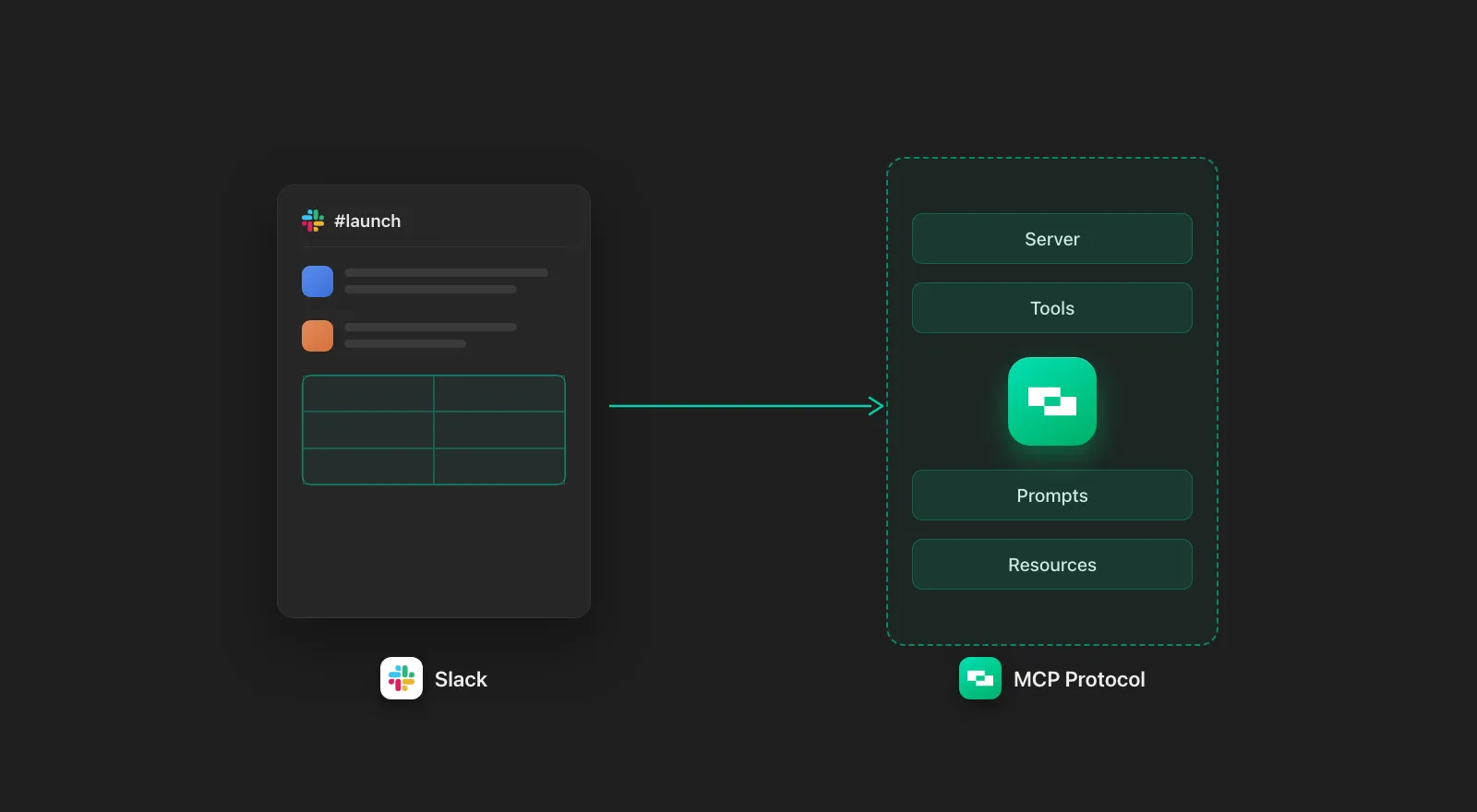
Slack MCP Server: Capabilities, Limitations, and Alternatives
A review of the official Slack MCP server: capabilities, limits, and an alternative, to help you choose which to use for your AI agent.
8 min read
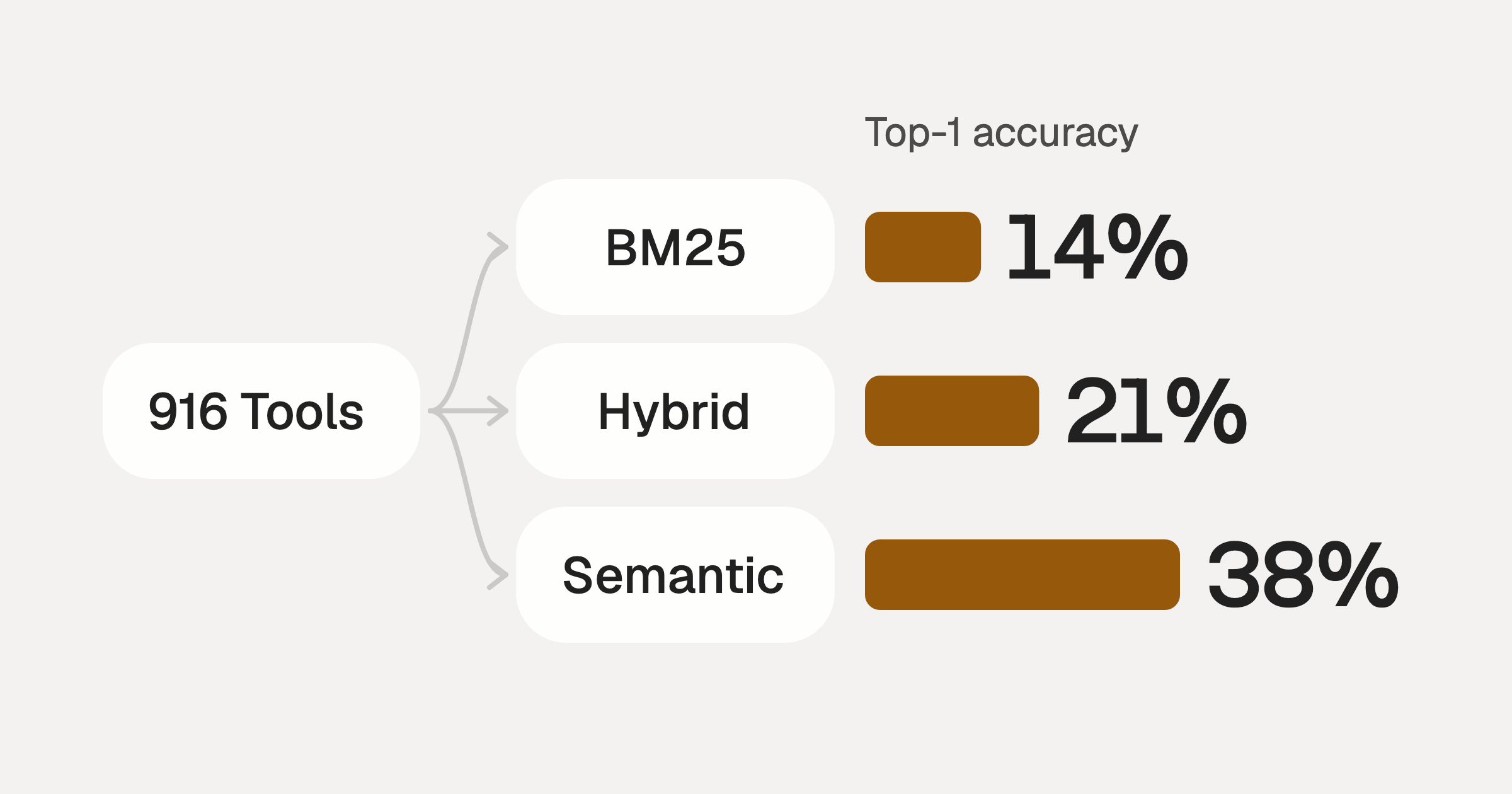
Comparing BM25, TF-IDF, and Hybrid Search for MCP Tool Discovery
Benchmarking BM25, TF-IDF, and hybrid search for MCP tool discovery across 916 tools. The 80/20 TF-IDF/BM25 hybrid hits 21% Top-1 accuracy in under 1ms.
10 min
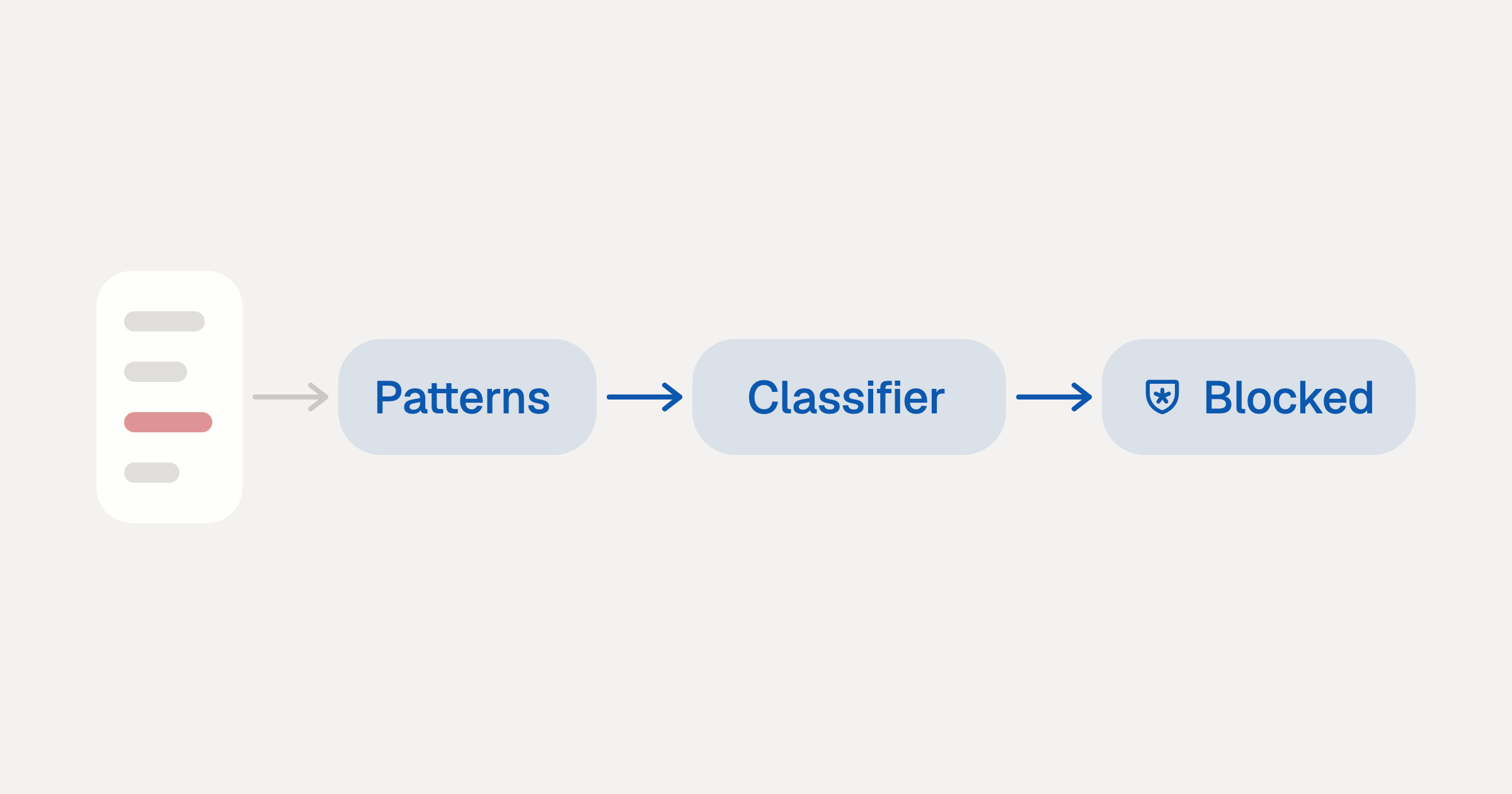
Indirect Prompt Injection Defense for MCP Tools: A Technical Guide
MCP tools that read emails, CRM records, and tickets are indirect prompt injection vectors. Here's how we built a two-tier defense that scans tool results in ~11ms.
12 min
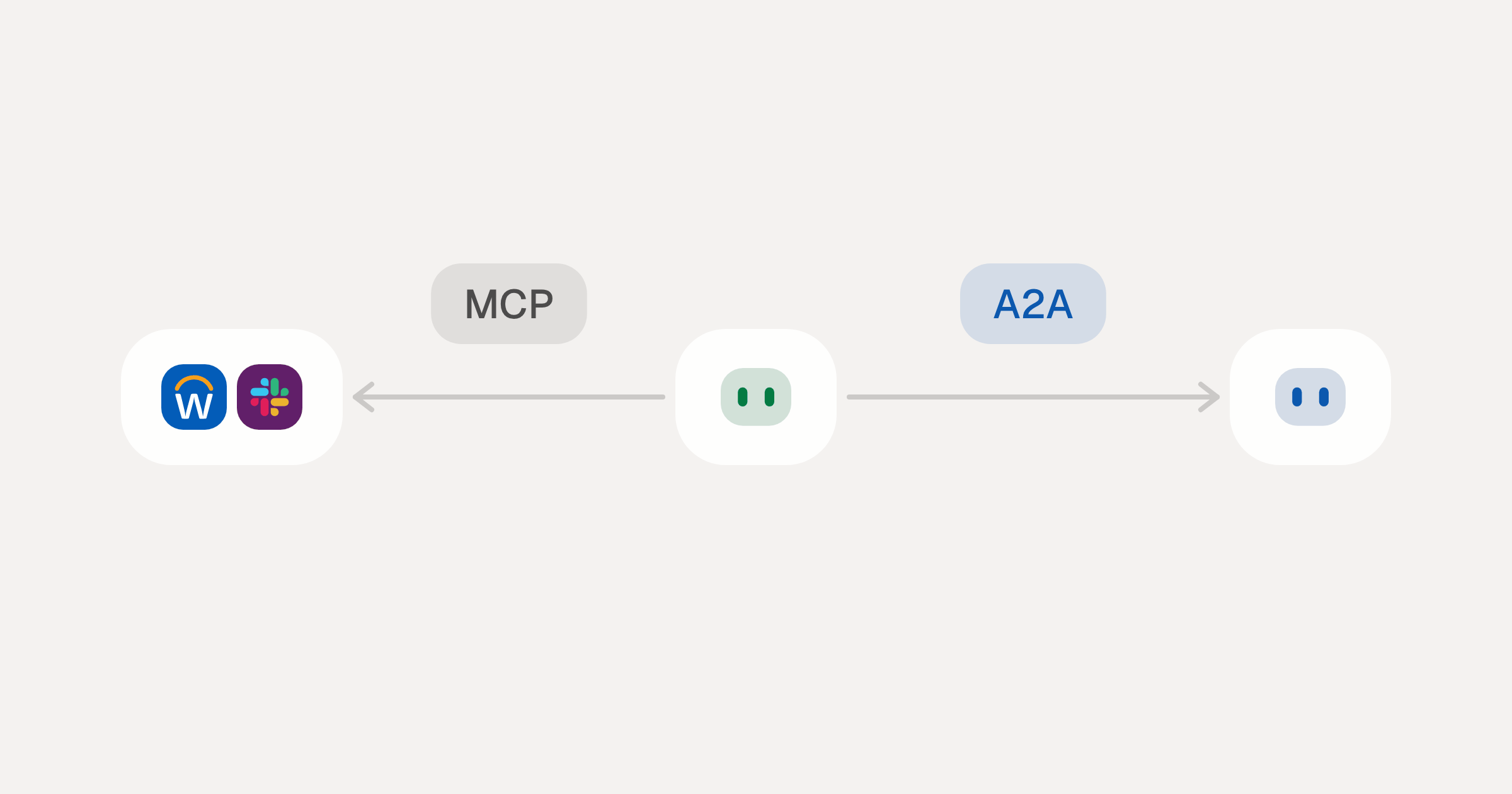
MCP vs A2A: Architecture, Security, and When to Use Each
MCP vs A2A: what each protocol standardizes, how they differ, the security risks they share, and when to use one, both or a hybrid.
12 min
MCP vs API: What Hundreds of Connector Builds Taught Us
MCP wraps APIs, it doesn't replace them. After building hundreds of connectors that serve both, here's when each approach wins.
14 min read
Slack MCP Server FAQ
Does StackOne have a Slack MCP server?
Slack MCP server vs direct API integration: what's the difference?
How does Slack authentication work for AI agents?
origin_owner_id.Are Slack MCP tools vulnerable to prompt injection?
What is the context bloat of a Slack agent and how do I avoid it?
Can I limit which actions my Slack agent can access?
Can I create custom agent actions for my Slack MCP server?
When should I NOT use a Slack MCP server?
What AI frameworks and AI clients does the StackOne Slack MCP server support?
Put your AI agents to work
Connect AI to every company system and control what it can do in each one, down to the field.