


 Guillaume Lebedel · · 7 min read
Enterprise MCP governance: from the pilot team to the whole organization
Table of Contents
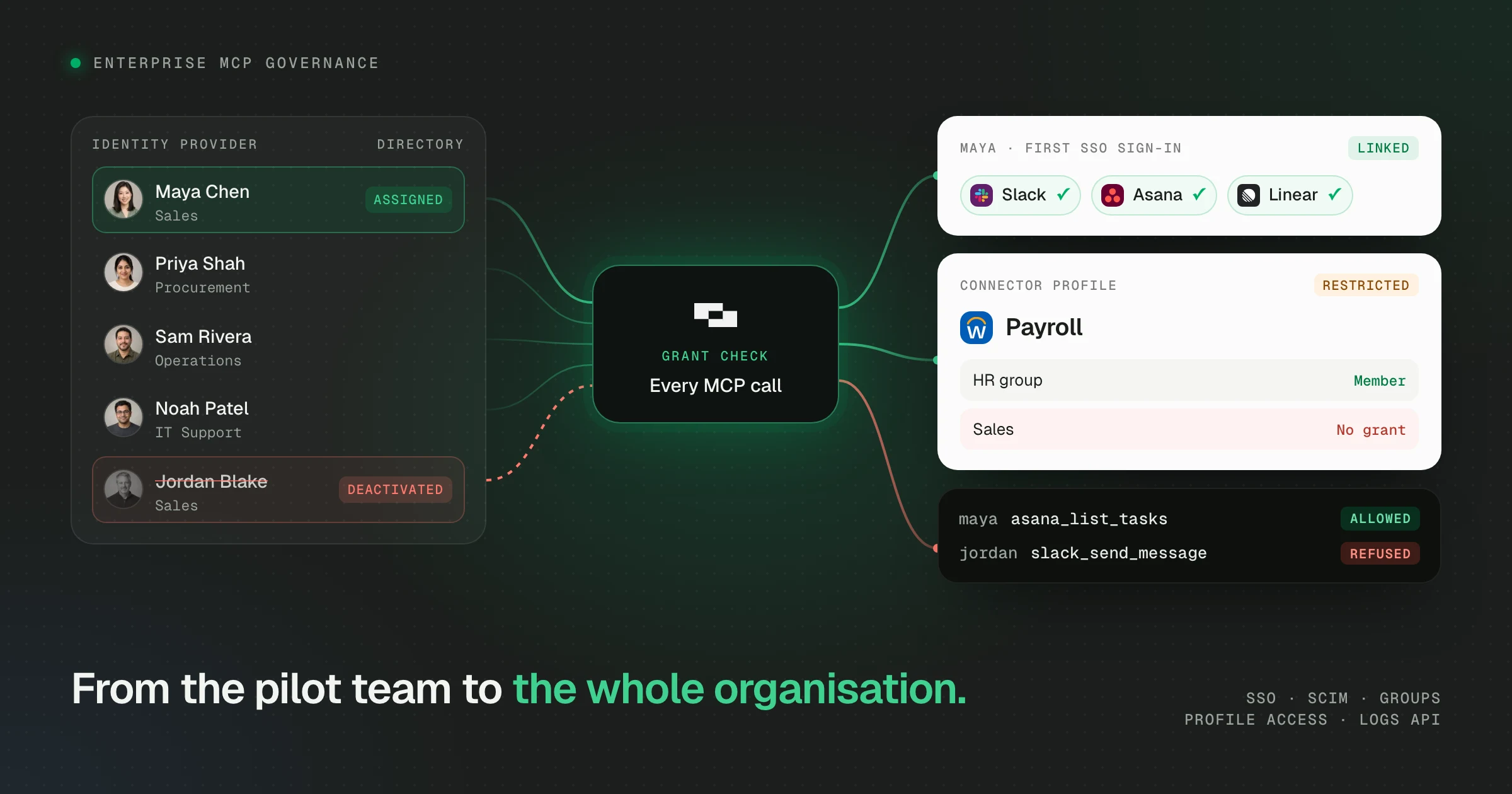
StackOne is now the one place an enterprise can govern MCP end to end. Enterprise MCP governance ships today. Your identity provider decides who gets in and who’s out, and each system’s owner decides what agents can read or change through it. Every tool call is on record. It’s what IT needs to hand one MCP endpoint to the whole organization instead of a pilot team of ten.
It covers four areas:
- Identity: SAML SSO with optional enforcement, Just-in-Time provisioning at first sign-in, and SCIM to add and suspend people from your directory, with groups synced.
- Access: several connector profiles per system, each with its own read or write actions, restricted to the people and groups who need them.
- Sharing: a login or API key linked once and shared with a person or a group. Nobody holds the credential, and each call is logged against whoever made it.
- Audit: every tool call, setup change and sign-in on record, pulled into your SIEM through the Logs API, with IP allowlisting for each project’s API.
A US medical research organization with 200 staff used these controls to connect nine business systems inside two weeks, with its first agent query on signing day. Its IT leader put it this way: “The granular access at the account level for a connector is a huge help. So now I feel confident that we can create connectors to everything.”
Why pilots stall at access
In a pilot, an admin invites a dozen people to StackOne by email, puts them all in one project, and anyone in it can connect any system. Then IT plans the rollout to everyone else, and the security review asks the questions a pilot never had to answer. Who added these people? Who removes them when they leave? Why can anyone in the project connect to payroll? What did the agents actually do?
Enterprise MCP governance turns each answer into a setting.
Your directory runs membership
Your identity provider already knows who works here. StackOne now takes its word for it, on the first day and the last.
 First day: Maya joins the sales team
-
IT assigns Maya to StackOne
One assignment in the directory, the same way IT hands out every other app.
-
Maya signs in with SSO and joins
Just-in-Time provisioning adds Maya to the project with the access IT set for new people.
-
Maya gets the Sales profiles
Her synced Sales group carries the connector profiles the Sales team uses, read-only where the system owner chose it.
 Salesforce ✓(linked)
 Slack ✓(linked)
 Asana ✓(linked)
-
Maya's agent gets to work
Every call is checked against Maya's grants and logged.
asana_list_tasksAllowed
Last day: Maya leaves the company
-
IT deactivates Maya
One change in the directory. SCIM provisioning carries it to StackOne.
-
Maya's access is suspended
StackOne suspends the account, removes it from synced groups and signs Maya out everywhere.
Suspended Removed from Sales Signed out
-
Maya's agent is refused on its next call
Nobody had to remember a runbook.
slack_send_messageRefused -
The change is on record
Platform logs record it, and a collector pulls them from the Logs API into your SIEM.
On the first day, SAML SSO and Just-in-Time provisioning add the new hire at their first sign-in, with the access you chose for new people. Their groups decide which connector profiles their agent can use from the first call.
On the last day, SCIM provisioning does the work. Deactivate someone in your identity provider and StackOne suspends them, removes them from their synced groups and signs them out on every device. Synced groups carry roles too, so a move from Support to Sales changes what someone’s agent can reach without anyone touching StackOne.
This controls access to StackOne. It never changes permissions inside a connected system, so closing the leaver’s own NetSuite account is still a NetSuite task.
Access follows teams and system owners
The person who owns a system should decide who connects to it. Pick a team to see who holds a grant and whose agent gets through:

Workday profile
Payroll
Access
-
 Alex Morgan Connector Profile Admin
- HR group Connector Profile Member
Agents call workday_list_workers through it
Who can connect
- Can connect: Alex MorganPeople operations director Links their own Workday account
-
 Cannot connect: Sam RiveraOperations lead No grant, so their copilot can't connect
-
 Cannot connect: Noah PatelIT support engineer Project Admin: can view and delete the profile, but can't link through it
Salesforce profile
CRM admin
Access
-
 Jordan Blake Connector Profile Admin
- Account executives group Connector Profile Member
Agents call salesforce_create_note through it
Who can connect
- Can connect: Jordan BlakeAccount executive Fixes records in bulk with admin scopes
- Cannot connect: Maya ChenSales development rep Links through the read-only profile instead
-
 Cannot connect: Priya ShahProcurement specialist No grant

Zendesk account
Support inbox
Access
- Sam Rivera Account Admin
- Operations group Account Member
Agents call zendesk_list_tickets through it
Who can use it
- Can use it: Sam RiveraOperations lead Linked the account, so holds Account Admin
-
 Can use it: Ravi MenonOperations coordinator Answers tickets through Sam's login, without the password
-
 Cannot use it: Taylor BrooksSupplier data admin Not a member of the account

NetSuite profile
Payables
Access
-
 Daniel Okafor Connector Profile Admin
- Finance approvers group Connector Profile Member
Agents call netsuite_list_vendor_bills through it
Who can connect
-
 Can connect: Hannah WeissController Links their own NetSuite account
- Cannot connect: Noah PatelIT support engineer No grant
- Cannot connect: Jordan BlakeAccount executive No grant
Two controls do this, and they answer different questions. Connector Profile Access answers who may connect: set the payroll profile to Restricted, grant the HR group, and only HR can link a Workday account through it. Project Admins can still view and delete the profile, but they can’t link through it. Each project’s Default Access setting decides whether new profiles start Shared or Restricted.
Shared Accounts answer who may use a connection. The person who links an account grants others Account Member, and their agents work through that login without ever seeing the password.
The two work best together, because a connector can have more than one profile. Each connector profile picks the actions its linked accounts can use, so a read-only profile and a full-access profile can sit side by side on the same connector, each shared with different people. Pick an example:
One connector, two profiles
Salesforce
Connector profile
Read-only
SharedActions
salesforce_list_opportunitiessalesforce_search_opportunitiessalesforce_get_opportunitysalesforce_list_accounts
Linked account
Sales integration userLinked once by the RevOps lead, then shared
Who uses it
- RevOps leadAccount Admin
- Account executives groupAccount Member
- Sales development groupAccount Member
Connector profile
Full access
RestrictedEvery read-only action, plus
salesforce_update_opportunitysalesforce_create_opportunitysalesforce_update_opportunity_forecast_categorysalesforce_delete_opportunity
Linked account
The RevOps lead's own admin loginNot shared with anyone
Who uses it
- RevOps leadConnector Profile Member
Every rep's agent reads pipeline through one read-only integration user. Only RevOps can change or delete opportunities.

One connector, two profiles
ElevenLabs
Connector profile
Speech
SharedActions
elevenlabs_create_speechelevenlabs_list_voiceselevenlabs_list_models
Linked account
Workspace API keyLinked once by the platform lead, then shared
Who uses it
- Platform leadAccount Admin
- Product groupAccount Member
- Support groupAccount Member
Connector profile
Workspace admin
RestrictedEvery speech action, plus
elevenlabs_add_workspace_group_memberelevenlabs_create_service_account_api_keyelevenlabs_delete_voiceelevenlabs_delete_agent
Linked account
Admin API keyNot shared with anyone
Who uses it
- Platform leadConnector Profile Member
One API key serves the whole team, nobody holds a copy, and each call in the logs shows whose agent made it.

One connector, two profiles
Google Search Console
Connector profile
Read-only
SharedActions
googlesearchconsole_query_search_analyticsgooglesearchconsole_list_sitesgooglesearchconsole_get_sitegooglesearchconsole_list_sitemaps
Linked account
[email protected]Linked once by the SEO lead, then shared
Who uses it
- SEO leadAccount Admin
- Marketing groupAccount Member
- Content groupAccount Member
Connector profile
Full access
RestrictedEvery read-only action, plus
googlesearchconsole_inspect_urlgooglesearchconsole_submit_sitemapgooglesearchconsole_add_sitegooglesearchconsole_delete_site
Linked account
The SEO lead's own Google loginNot shared with anyone
Who uses it
- SEO leadConnector Profile Member
Marketing reads search data through one shared, read-only login. Only the SEO lead can change sites and sitemaps.
In each one, the owner links the shared login or API key once and grants the team Account Member, and nobody sees the credential. Everyone on a shared account has to be a member of its project, so removing someone from the project or the organization, or deactivating them through SCIM, ends their access as well. For a shared API key this also means attribution: each MCP call is logged against the person whose agent made it, so the logs page can filter one key’s traffic by user.
Every MCP call an agent makes on someone’s behalf is checked against that person’s grants before it reaches the system.
Every tool call is on record
StackOne logs every tool call with its outcome and the policy decision behind it, every setup change as a platform log, and every sign-in. Security teams can run a small collector that pulls action and platform logs from the Logs API into Splunk, Datadog, Elastic or whatever they already use, so agent activity sits next to the rest of their audit data. Add IP allowlisting and a project’s API only answers calls from your own network.
What’s in the release
Eight parts, each documented on its own. The plans that include each one are on its card.
Getting started
An IT admin creates the SSO connection, verifies the domain, then turns on Just-in-Time provisioning and links SCIM on the connection’s Provisioning tab. System owners then restrict their connector profiles and share their linked accounts from each one’s Access tab.
Start with SSO and one restricted profile, then add SCIM before the wider rollout. The Identity and Access guide walks through each step.
Cross App Access, which links each person’s apps at their SSO sign-in, works with Okta and other identity providers that support Cross App Access. Its release notes cover the setup.
Take your AI rollout from the pilot team to the whole organization.
Or read more about governance and the docs (opens in new tab).